For those of you that want to do more with Google than to use quotation marks you might be interested in a free on-line class that Google is conducting in Power Searching.
Power Searching with Google is a free, short term class that Google is conducting. It is in the same spirit as the MIT classes on the Python programing language and Building a Search Engine.
Meaning that you could have classmates from all over the world. This specific class is being taught by Google. There will be opportunities to go deep via Google+, Google Hangouts and other social media pathways.
I would guess that you would be able to ask questions via Google Hangouts or a number of different ways. I'm half tempted to buy that Nexus 7 tablet just to try it out. Like I need an excuse to buy tech.
Class starts on July 10, 2012 and runs for two weeks. So, fire up that phone, tablet or desktop and register.
Addendum: Just got my confirmation; ixnay on the phone. You can use a tablet, notebook or desktop computer. I'm thinking they would prefer that you use Chrome. Just a hunch.
There are all kinds of ways to find information. What do you do when you find it? Or perhaps there is so much of it that it requires a different approach to share the main points of the sources.
The Data Journalism Handbook is a guide written by journalists to help other journalists and people who need to deal with large amounts of information to find a way to get to the good stuff and make it visible.
There is a free web version and a paper version that will be published some time this year. In the web version you can select the chapter that most meets your needs at the moment.
The books focus is from the point of view of someone in the United Kingdom but who wants to always search American centric information anyway.
Chapters that might have an appeal to library students include:
A Five Minute Field Guide - suggested methods to organize your thoughts and a listing of data sources that could provide support to hard to answer questions. Some of the sources cited are the Guardian's World Data Bank, Project Wombat and ScraperWiki.
Designing with Data - because when you find it you have to do something with it. How do you present the result of your search without distorting the intended meaning?
I love a freebie that comes from good stock. The Southern California Association of Law Libraries has a new edition of the Locating the Laws Handbook. If you are interesting in working in a law library or need to find a law source quickly this might be the publication you have been seeking in the stacks.
There is much goodness to be found here. Chapter 3 has a guide to conducting a legal information search and interview techniques. This is a section of the handbook that talks about the legal information interview:
Regardless of how the question is phrased, the user is ultimately asking what law or laws apply to his or her situation. Your first task, as in any reference interview, is to analyze the information provided in order to identify the relevant facts and to weed out the irrelevant. To determine the relevant facts, you will usually need to ask additional questions. At this point, it is appropriate to briefly address concerns about the unauthorized practice of law.
Librarians conducting a reference interview should not be afraid to ask questions of someone seeking legal information. Asking questions in order to make recommendations about appropriate legal resources to consult does not constitute giving legal advice.
The handbook is a Adobe PDF document. You can view by chapter or you can download the entire handbook and read it on your computer or with you favorite tablet or e-reader.
You definitely want this on your virtual resource shelf.
It seems once you land find one archive the rest sort of wander over to great you. On Google News there is a collection archive of scanned newspapers from various dates, cities and countries.
There are newspapers from the 1800s and 1900s as well as through the depression era and the 1960s in the US. Some of the newspapers only contain one issue and others have a full collection of publication.
It really is entertaining to read some of the early issues of various newspapers. The Covington Journal mission is to "cover politics, literature, education, agriculture and the news of the day."
You can perform a keyword search to find topics of interest. Keep in mind that usage and terminology has changed over time.
For example, suffrage was used in connection with slavery and then freed men and women. It later became a term connected to woman's suffrage. The term womens liberation came into use much later.
If you are looking for historical comparisons today's hot topics this is one of the places you should considers investigating.
Just found out that Ask.com is closing Bloglines on October 1, 2010. This means if you have a bunch of RSS feed links stored in Bloglines you need to find them a new home.
If you have an account you need to export your feeds quick, fast and in a hurry. The instructions are on the front page of the Bloglines website.
I know that many people used Bloglines access multiple web locations no matter where they were or what machine that they were using. I certainly used Bloglines for class related sites and to track various types of information. It was very helpful.
Alternatives to Bloglines
If you have a Google account you can import your Bloglines feeds into Google Reader. This way you can continue to access and track websites from home, work or school.
My problem with using Google Reader is that I don't want all of my RSS feeds in the same place. I have entertainment links, educational and research links that shouldn't be intermingled.
Desktop Readers:
Windows users might want to consider installing Feed Demon and Mac iPhone, iPad and desktop users may want to swing over to installing Net News Wire.
E-Mail RSS Readers:
Your e-mail program may have a News and Groups/RSS reader function. I use Thunderbird as my e-mail program and a supplemental RSS reader. Microsoft Outlook and other e-mail programs have similar functions.
The only problem is accessibility away from your primary computer.
Twitter and Facebook
Yes, this is an option if the website or blog faithfully announces new posts in their feeds. Not all do. And strange as it may seem not everyone has a Twitter or Facebook account.
You really should have some kind of link management or tracking system as long as it supports your online experience and your research needs.
I know I used to have rivers of red ink when I created reports in high school. A dropped comma, underline one source but not the other. Mistyping the proper citation format has cost me a grade or two.
Unfortunately, I have no excuse anymore. Son of Citation Machine has been help folks out of the pain of constructing MLA, APA, Turabian and Chicago styles of proper citation since 2000.
Caution - always check your schools or publication preferred citation format. You might have to make adjustments or adapt what your school requires as the proper format.
Now this might not help you on a pop quiz or the final. You are still responsible for knowing how to cite a newspaper, book, recording or web page. But if it is 3 a.m. and your paper is due at 8 a.m. you are gonna needs a little help.
One of the regrets most of us have is that there isn't time to learn all you need to in class. I have plenty of book at home that need TLC but I have sense to know not to use tape or home based glues.
For every question there is almost an answer. Or a video. Which requires an explanation. There is a niche market for the suppliers of book repair materials. Those that are smart will make videos that demonstrate how to use their product.
The first video is a demonstration from Joyce Godsley at SICPress.com on how to remove an old faceplate from a book. (Please note that there there is no implied or intended endorsement of the products or her company.)
There are other book repair videos. The Health Science Library at the University of Chapel Hill has one on how to make a four flap enclosure. Master Bookbinder Peter Goodwin gives a historical explanation of bookmaking in the 1800s, the reason forbrittle book paper and the fate of all acid based books.
I want to give a hat tip to Acquired Books blog to point me to a free online Preservation 101 tutorial you can take to enhance your books repair skills.
Just took a look at the offering and wow, there is info on collection management, collection care and what to do when a disaster (fire, flood or earthquakes) happens to your materials. You can download .pdf copies of the instructions to build your own personal repair tool kit.
This is really good stuff. If you think you might want a little more information about library preservation check out Kevin Driedger's blog, Library Preservation.
I remember my visit to The Huntington Library. One of the most memorable parts of the visit was the book restoration area. It was a combination of technology, history and respect for the material to be restored.
Lili's Bookbinder Blog is an opportunity to get a better understanding of the process of restoring a book. Some of the technology is centuries old and some of it is new but the purpose is to make the book aesthetically and functionally whole.
On the blog Lili really does go into the process of how she restores and rehabilitates books and antiquities. There are lots of photographs and clear explanations of the craft. This is a lot more detailed than what we learned to do in our technical services classes.
I hope you will take time to visit and get inspired.
It is a good day when I find an active library technician/assistant blog. From Canada, Library Technician Dialog contains posts from two LT's, Brenda who has interests in professional development and Karen who works in a law firm library.
I'm liking what I see here; Karen writes about adding value to her library job by showing her firm what a library assistant can really do for the firm. There is a joint post on how both of them apply that idea into reality.
There is a post on how Twitter can be more than just a time waste, it is a way to make or maintain contact with people in your profession. Brenda writes about the need for storytelling and public speaking skills (Yes, you do need them! No, you can't hide behind the stacks and hope people will go away.) She also writes about Wikis and a few Wiki options.
For those of you that asked for more relevant LT/LA information that matches what you are learning or what you might experience on the job, here you go. Make time to visit, it is worth it.
This is another way to subscribe to LISJobs via RSS but this time using Google Reader. The concept is the same as with Bloglines but for some folks it might be much easier. Or not.
Step 1 - Getting the RSS feed from LISJobs
You can move you mouse pointer on top of the hyperlink address. This link contains the actual code that you can copy into Google Reader or any RSS Reader.
It looks like http://www.lisjobs.com/rss.asp and you can see it at the bottom of your browser window. The RSS in the web address tells the RSS Reader where to find the RSS feed code for the website or blog.
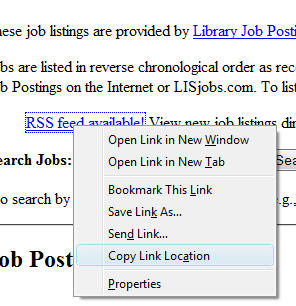
Step 2 - Copy The RSS Feed Code
The next step is to copy the RSS Feed Code. For Windows and Linux users click your second mouse button to bring up the context menu. You want to select "Copy Link Location."
Macintosh users, I confess it has been awhile since I've touched a Mac; I think you have something similar, either by mouse or a keyboard function.
Step 3 - Google Reader
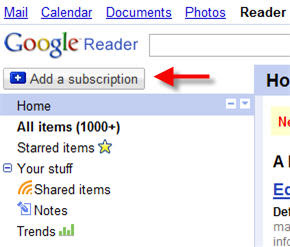
Next, glide over to Google Reader. If you have a Google account you can go to your subscription page. At the top of the page is the Add A Subscription button.
Step 4 - Add The Subscription
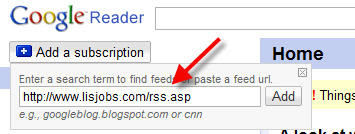
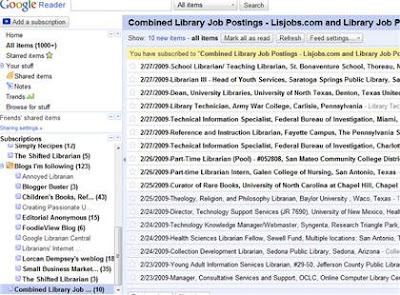
Click that button and you will see the image below. You can paste the code in the box. Now if the website or blog only has one feed you can type in the web address and Google Reader will find the RSS code for you.
There are some websites that have multiple RSS feeds for various areas of interest. I think it is better just to get the feed that you want as oppose to having Google Reader ferret out a bunch of them.
The lamb has shaken his tail and this is what you should see:
You now can track the job positions from a centralized place. You can customize Google Reader to show you the entire post or just show you the titles that will link back to the original site.
So it doesn't matter if you are at home, school or in the library you can track potential job listings from a number of sources. This can save you time and frustration. Good luck and on with the search!
We need work. What good is technology if it does not serve your immediate or long term needs? There are websites and blogs that list library jobs. You can visit each and everyone of them but there might be a better way.
RSS stand for Really Simple Syndication. If you done know about RSS check out my post with a captioned video "RSS in Plain English by Common Craft. It does are really good job of explaining what RSS is and how you can use it.
This is an example of how to subscribe to an RSS feed and have it show up in your Subscription list aka news aggregator or RSS Reader. Many of you are familiar with Bloglines, some of you use Google Reader or My Yahoo for your online aggregator. At home, I also use the RSS Reader that is included in my e-mail program, Thunderbird.
I don't care what you use so long as you have a means to subscribe to blogs, websites and other forms of online content. For this example, I'm using Bloglines because it is bone simple to use.
Step 1 - Subscribing To LISJobs
You can visit LISJobs and see the current job listings. Or, you can have those same listings come to you.
When you want to subscribe you are looking for an orange button with the letters "XML" or "RSS". It can also look like a broadcast symbol which you will see in the next photo. On other websites it does not have to be orange or have those letter but that is the most common way of indicating that this is a subscription feed. For this particular website, click the button.
Step 2 - Subscribe Options
You have options. If you use Live Bookmarks it will direct your feed there. If you subscribe via another service not listed or you have an RSS on your computer you can make that selection as well.
I like Bloglines because I can access it at home or when I am at a conference or giving a demonstration. I moved my mouse pointer to Bloglines, and it will take me to the Bloglines web site.
Step 3 - Bloglines Subscription Page
Now you will probably have to log in to Bloglines before you get to this page. This is the screen where you confirm the site that you want to subscribe. You can customize how you want to see your listings. You have the option of just the titles or looking at the full post. You can also tell it to send it to your cell phone, PDA or iPhone.
When you are ready click the subscribe button.
Step 4 - Added To Bloglines
Bloglines will add it to your list of blogs and websites that you are tracking. On the right is the titles of the posts.
This is not the only way to subscribe to RSS feeds. If you know how you can copy and past the code directly into your RSS Reader. I'll show you how to do that in the next post.
Many websites and blogs have subscription button for Bloglines, Google Reader and dozens of other services. You just have to click the button of your choice and it will take you to your subscription page.
Now is not the time for techno wimps. We really do need to use all tools at our disposal. It is free and other job seekers are doing it. Shouldn't you?
This happens to me every now and then. I was having a conversation with a group of people. It was totally friendly. I was explaining my concerns about the switch to digital television. One person asked me could I dumb it down for normal people.
There was laughter. I must have had my deer in the headlights look. I simplified what I had mentioned that even if you have a digital converter it may not work for a number of reasons.
Honestly, inside I felt stupid. I forgot to switch from nerd/nerdette speak to folks that don't know what a blog is or why it is important to know. It is important to be language aware of what you are saying and how you are saying it. I get so eager to share that I forget to switch modes.
Will I do it again? Heck yeah but hopefully I will pause and make sure what I am saying is going to be heard and not blocked because of the way that I am saying it.
A few months back there was a comment about how some of the items that I post tend to be about technology and don't really have anything to do with the program. I have to plead guilty to my biases. However my lust for information technology really does have a lot to do with the evolving workplace known as the library.
After you leave the program you will encounter these technologies and expected to use them or learn them very quickly. There will be things that have not been invented yet but those items will impact your life and your library visitors.
So I'm doing a little happy dance when I found the Beware Of Papercuts blog. Podcasting for Libraries - yes you should know how to find podcast beyond iTunes, how to create them and why that could be a useful skill. Twitter? For sure. Tools for your cell phone? Check.
So if you have a chance check out the Laughing Library Clerk as she gives you real working examples of how to incorporate technology with providing services.
Did you know that the letters ZIP refer to the Zone Improvement Plan? Or that the character on postal advertisements is known as Mr. Zip? You can learn a lot of things by visiting the post office web site. For those of you who are building your Ready Reference toolkit here is one more goody that you can use.
Most folks know that there are ZIP code books published by the United States Post Office. Two large and heavy books. The only problem with the books is that ZIP codes can be changed or modified. Or a city is renamed. Or the city name "disappears."
There is an better way if you have access to the Internet. The ZIP Code finder is very helpful.
You can find the ZIP code for a specific address or a city:
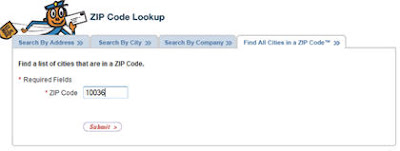
If you know the ZIP code you can find the city name:
This is where the history part comes in. Many cities have multiple names for the same geographic area. Some are historical or regional. City names change over time, so that the name the patron uses might not be the actual city name.
For example:
The legal city name is New York. People who live in that area or who have written about that specific area may call it Manhattan. The Post Office would like you to address mail as New York, NY but you might have a patron approach you to find the zip code for Manhattan. By using the City or ZIP Code search you can obtain the correct information.
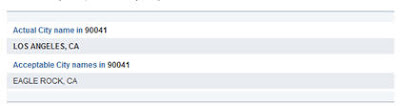
Now it doesn't always mean you can't use the historical or regional. In the Los Angeles area we are aware of the city of Eagle Rock. The Post Office considers it an acceptable city name:
In this case it is ok to use either the legal name, Los Angeles or the historical/regional name, Eagle Rock for this section of town.
Other Uses for USPS.com ZIP Code Finder
This could be helpful for genealogical searches. A patron may have a document that states a person was born in a certain area of town. They can't find it on a modern map. You can use the ZIP Code search to help you find out the historical name and the contemporary name of a location. You also might want to cross check with a gazetteer as well.
There are certain schools, hospitals and businesses that are so large they have their own specialized zip code. 00401 belongs to the Reader's Digest Association in Pleasantville, New York.
So if you want to build up you pecks continue using the books. If you need to know right now then you should visit www.usps.com
How Do You Find Stuff? I don't mean the specific tool but your own personal process. How do you take in information? How do you learn and how do you organize what you have learned?
For some of us it is a visual process. We need to see the lay of the land before we start digging in. For visual learning mind mapping software can help to organize your thoughts and and create a structure for your reports, projects and goals.
Outlines do not have to be word based. Check out some of the on-line mind mapping applications. This is an example of one of them. Mind42 is an web application that helps you organize the jumble in your head so that you can see the common and related connections. You can add notes and reminders as well as a Wikipedia page that related to your topic.
This is a silent tutorial video from Mind42 that demonstrates the web application:
You type in the Google search box and hope for the best. Tsk, tsk. There is so much more you can do to refine your search results and save yourself a bit of time. So let's take a quick look at library specific feature that will help you get the most from your Google experience.
Search Box Quickies
These are some of the things you can do to get your answer quickly without having to find a specific web site. There are many tools that can help you survive the Ready Reference desk whammo of the day. This is just a sample:
To get a definition of a word type define, press the space bar and then your word.
Use it as a calculator, if you know basic math just type in the formula and press search. Your answer will appear before your eyes.
To find a restaurant in a certain zip code type the kind of food, press the space bar and then the zip code. Google will show you a list of the area restaurants with a map, the name of the restaurant and their web site. You might think it is important but I have people asking me all the time where can I go for a taste of Yak.
So if you are very busy spend a little time on the Google web search page and learn a few quick tips that will help you find what you need more efficiently.
Those of you who will be sitting at the Ready Reference desk will absolutely want to embed these skills to memory.
The word for today is Collaboration. You will be collaborating with your peers, volunteer organizations and individuals you will never meet.
In the past, collaboration happened in meetings, phone conferences or passing documents back and forth via mail. It is now possible for groups, team members and activists to communicate and exchange information about a project and build a documents, process or create an event.
Look, All I Want To Do Is Shelve Books, Is This Really Important?
Yes it is. I support sniffing book dust but at some point you are going to be asked to participate in a project or presentation. If you haven't taken Library 104 yet this is your pre-warning.
You will find that your team members are time strapped. They have personal and professional obligations in addition to the one they just got roped into. The same as you.
Online collaboration tools make it easy to contribute, edit and present information with a reduction of time lag. The other thing about on-line collaboration is you find out real quick who is the slacker and who delivers what they have promised.
What Is A Wiki?
I'm going to let the good folks at PBWiki help explain this to you.
A wiki is a place where a group of people use software to make it easy to work together on a project. You can upload text, photos, maps or links to places that would support the team's goals. You don't have to be a techie to use a wiki, everything is set up for you to enter your information and put it out to the public or just visible to the folks on your team.
In addition to the ones I mentioned in the Library 101 presentation:
Backpack It allows you or a team member to organize a project, a work flow or anything else a group of folks want to work on. There are free and paid versions. Check out the video tutorial on the main page.
GoogleDocs allows you to using an online word processor, spreadsheet and presentation software with other team members. So if there is a class report that has to be completed your team could set up the report and members could add to it any place where there is Internet access and at any time. You just need a Google Account and then sign into Goolgle Docs.
These are great tools but not the only one - there are all types of collaboration tools that would fit your budget (free to me) and the kind of resources required. Let's take a look at a few more.
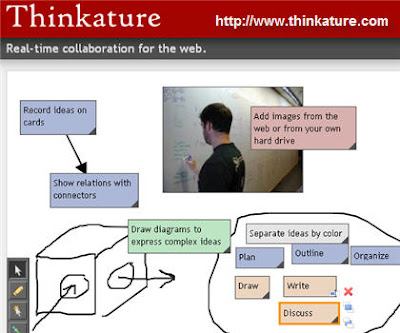
Thinkature - visual collaboration with drawings, outlines and short notes. Remember, not all good ideas arrive via words. Sometimes you have to show in order to tell.
Zoho Notebook - you can add video, photo or text to your Zoho Notebook and keep track of changes made to the project. Zoho has a whole range of free on-line applications such as word processing, wiki, e-mail client, planners and more.
WriteWith is specifically for team documentation. It allows you to set up your team members, the name of the document and the last update. Using WriteWith a team leader can send invitations to team members to review what you have written or edit and include a deadline.
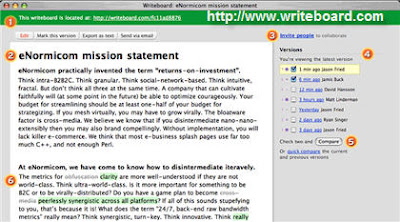
WriteBoard - Place your idea on the write board and have others edit what you have written. You can have a list of team members and you can view comments about the changes in the document.
When you have to get something done with a group of people and there is no time to meet in person then consider using one of these tools to meet and work in cyberspace.
As always, if you have questions please send them in the comments. The comments are moderated so it might take a while to check them out and get back to you.
If you intend to be a library worker you need to know how to view, download and save an electronic text files, Adobe .pdf files or how to find and listen to an audio recordings.
Hey, I'm In It For the Books. Why Do I Need To Know This Stuff?
Define "book?" This is not a trick question. Traditionally there was a physical, tangible object made of paper and ink called a book. It was and is a delivery device used to convey ideas, stories, methods and instructions. A mighty fine delivery device.
However, it is not the only way to deliver content. A book can now be:
An electronic text file that can be read on-line or through a e-book reader and some media players. For example, if you wanted to read a book in the text format you could visit Project Gutenberg to search, download and read books that are in the Public Domain.
In the Adobe Portable Document Format (.pdf) that can represent book-like feature but allows you to search, annotate and electronically highlight sections. .pdf files are printer friendly and can be sent via e-mail, downloadable via the Internet or compose your own book for distribution. Planet PDF has free books for download such as Anna Karenina, A Tale of Two Cities and Beyond Good and Evil.
An audio file book can be delivered via vinyl records, cassettes, proprietary audio formats (Audible.com) or in computer audio formats such as .mp3, FLAC, .wav, aiff and other electronic audio fomats. Computer audio formats can be listened to on-line, played back on certain CD/DVD players or from a media players such as Apple's iPod/iTouch, Windows Zune, Creative's Zen and many more. One place to find free audio books is LibriVox. I can personally vouch for The Prisoner of Zenda.
For example, you are assigned in the library computer lab. You are siting at the desk all alone on a Saturday afternoon and the tech staff is long gone. A patron comes up to you saying "I want to download Parallel Systems: The Coexistence of Subject Cataloging and Folksonomy" and save it on my USB drive. Could you help that person?
Or, you are asked to find an audio copy of Jane Austen's "Sense and Sensibility" Can you find a legal public domain version in the mp3 format? Could you also find other audio versions performed by professional actors that the patron might want to know about?
To Get You Started:
Try the recommended links and view the web sites. Now if you do this at a public library or even at PCC there may be restrictions on what you can view, download or save to an alternate device.
Some libraries will allow you to save to a USB drive but not to the computer's hard drive. Other will temporarily allow downloading to the computer's hard drive but the user needs to know how to transfer to the USB drive. Ask the staff or read the computer lab policy first.
When searching remember, it is not just about Google. Try Ask.com, Hakia and SearchMe.
In my presentation I mentioned that RSS stands for Really Simple Syndication. What that means is if you really like the blog and want to be alerted to new content you can copy a bit of code that will connect and keep you up to date with new content.
It is similar to a magazine subscription; you like the magazine and you want to receive it on a regular basis. Unlike magazines there is no fee involved and you can start and stop at any time.
Another way to look at it is there use to be three television networks that created content. After the program was canceled or finished its run it would go into syndication where other television stations could air the show when they wanted to show it to you. Most times it was 4:30a.m.
Instead of a company distributing the content when it wants to the user or patron gets to decide what content to received from millions of choices.
What You Need To Get Started
You will need to have what is called a RSS Reader. This is software that looks at the code, goes to the website or blog and transmits the new content to you. In class, I showed you Bloglines which is a free service that you can use to keep track of your favorite blogs, podcasts and web videos.
If you look at the bottom of the PCC Libtech blog you will see two buttons. One of them is for Bloglines. After you set up your account you can click that button and subscribe to the blog. The orange icon is another way to subscribe to content for other applications and services that use that format.
If you are a Google Guy/Gal no worries. If you use Google applications and services you just need to activate your Google Reader account. Google has a tour page that will explain the process.
Now I've tried to give a basic explanation but there a video that will make it crystal clear. Back in 2007 I wrote about the Common Craft videos and this is an example of my RSS In Plain English post from 2007. Definitely check the video out; it will help you understand and get you started building your link collections.
There is something to be said for simplicity. No bells or doo-dads to get in your way. Just a woman and her text editor. Text editor? Have I gone retro?
Yes, I guess I have. For the moment anyway. I am not forsaking my word processing programs. But there are times when looking at a blank white screen is intimidating. I wander. I find things that I shouldn't be fooling with when I need to crank stuff out.
But for some reason gazing at a black screen with green type takes me back to the days when all I could do was type. And words starts to stream out of my left side of the brain.
Here are some of the advantages of using an on-line text editor:
You can use it anytime, anywhere that you are on the Internet.
For students it is a quick tool you can use to do research and copy citations and web addresses into the program.
It has a spell checker and a word counter.
Writer will allow you to save what you have written as a text file, or as a .pdf file. You can email it to yourself. I had a problem doing that. It never let me enter my email address.
It is free as in no cost to you. But if you really like it you can make a donation.
You can customize the type and the color. Green is not you thing, go old school Orange/Amber. So everything old is new again. Give it a try and see if it works for you.
It ain't easy being the new kid in town. The cool kids can't see you for who you are. The snobs know everything and have no use for you. But Cuil, I think you got potential.
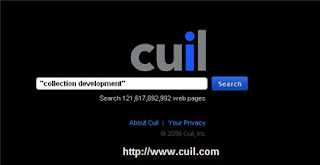
Cuil is a new search engine. It is pronounced "cool". I like some of the features of Cuil and I want to show you what it can and sometimes can't do.
First off, let's not compare it to Google. I think it has more in common with Ask.com which is a dang good search engine. I type the term "collection development" Cuil gives me the following screen:
You have the option of a two column or three column layout and the items matching your search term appear on the screen. On the upper right side is the explore by category menu.
It will bring up additional categories. By clicking on the gray bar it will give you related terms you can use to search with your initial search term.
I like this for a good and bad reason. I can get more specific by telling Cuil I want to know more about library collection development. But if I want to stray of and dive into something new I can do that too.
I mentioned that Cuil is more similar to Ask.com and I want to show you what I mean:
Comparing it to Ask.com
Ask.com also has a feature to narrow your search but it is a little more focused. It understood that I was looking for library collection development, offered to show examples or links to planning, tools and practices.
Ask.com is not perfect. You have to know that there are sponsored links above and below your actual search results. Some of the links provided even under the stated categories are out of place or relate to other industries that also use the term collection development.
I like the concept of having suggestions to narrow the search term and I think Cuil is on to something. Having multiple categories to choose from can lead you down many interesting roads.
Small Caution and Safe Searching
As I was going through the links I noticed that some seem to repeat themselves. I looked down at the URLs listing and finally figured out the problem. Blog spoofers, spammers and other forms of low life are stealing content and linking it to their websites or blogs. Why would a seller of baby products wrap itself around the term collection development is beyond me.
This is not Cuil's fault. It is an on-going problem with all search engines. Be extra cautious about automatically clicking on a link. Read the sample text, many times the crum bums can't spell or there is non-sense text. Look at the URL before you click and practice safe surfing.
I'm not just saying this about Cuil. You have to be attentive with all search engines.
Is It Worth It?
Yeah, I think it is worth a tryout. When I refined my search to library collection development Cuil pulled up links from university and professional associations. It also presented books containing collection development content.
It was fast and I liked that it was more of a visual experience. I think you should add it to your reference tool kit for a test drive.